
Made for your
big screen.
Your movies, shows and saved progress, together in a home built for your remote.
Free LimeFire access during the open beta. Your media-service subscription is separate. See what’s included.
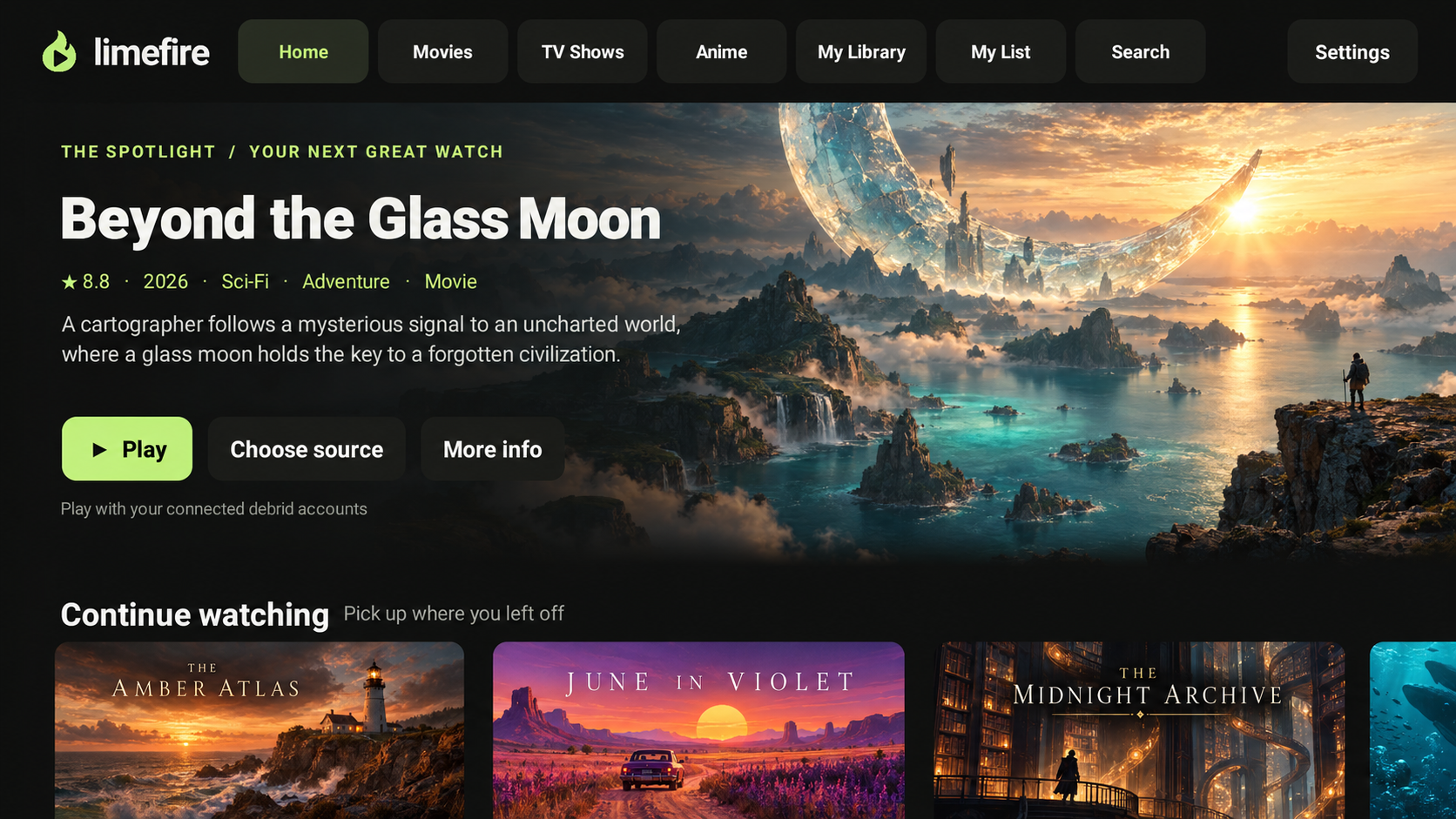
Settle in. Press play.
Browse on your TV with native playback, subtitles and controls made for your remote.
Keep your place.
Resume a show where you left off, or roll into the next episode with a countdown you can cancel.
Your accounts. Your choice.
Connect Real-Debrid or TorBox with your own account. Your watchlist and progress stay together in LimeFire.
A better home
for your next watch.
The native TV app, your profiles and your place in every show. Create a free LimeFire account and bring your own supported media-service account.
Use your own Real-Debrid or TorBox account.
No payment method or LimeFire subscription required.
- Fire TV, Google TV and Android TV
- SmartPlay source selection and native playback
- Profiles, My List and saved progress
- Resume shows and continue to the next episode
LimeFire does not include movies, shows or a provider subscription. Your provider’s plans, fees and limits apply separately. Beta terms · Privacy
A future bundled TorBox service is under consideration and depends on a partner agreement. No bundle is included or available to purchase in this beta.
Get your TV ready.
Use this site for account setup. Watch in the LimeFire TV app.
- 01
Make yourself at home
Create a free LimeFire account with your email and choose a profile. No payment method is required for the open beta.
Sign up or sign in - 02
Connect your media account
Bring your own provider account. Review each connection’s playback permissions before enabling it.
Connections - 03
Install on your TV
Download the TV APK. On Fire TV, open Downloader and enter the download address below.
Get LimeFire TV - 04
Pair, then press play
Open LimeFire on your TV, choose Connect, and enter its code here to link your profile.
Pair your TV
One app. Your favorite screen.
For Google TV, Android TV and Android-based Fire TV devices. Amazon Vega OS devices are not supported.
Get the TV appInstall with Downloader
- Install Downloader on your TV.
- Enter Downloader code 1813588, or use the full address:
https://beta.limefire.tv/downloads/limefire-tv.apk - Allow installation from Downloader if your TV asks, then install LimeFire.
- Open LimeFire and connect your account.
For updates, install the latest APK over your existing beta app to keep its settings.
A little more before you start.
What’s included in the beta?
Free access to the TV app and this account setup site, with your own supported provider account. No LimeFire subscription or payment method is required. Phone apps and web playback are outside this beta. Expect occasional bugs as we improve it.
Will there be a bundled provider plan?
A future bundled TorBox option is under consideration, subject to a partner agreement. No bundled service is included or available to purchase in this beta.
Does LimeFire include movies or a provider subscription?
No. LimeFire is a media player and catalog interface. Connect your own supported account and use media you have permission to access. Provider availability, plans and limits apply separately.
Do I need Trakt?
No. LimeFire keeps its own watchlist and playback progress. Available optional integrations are listed in Connections.
What information does LimeFire save?
LimeFire stores your email, profiles, watchlists, playback progress and connected-device information in Supabase. Connected provider credentials are encrypted on the server. Your paired TV or chosen player may receive a provider credential when you approve its connection permissions. You can disconnect providers and revoke TV access from this site; reset a provider key with that provider to revoke previously shared credentials and links.